Z Score Table and Calculator
Turn a z-score into areas under the normal curve, find z from a value or a percentile, and read the full printable z table.
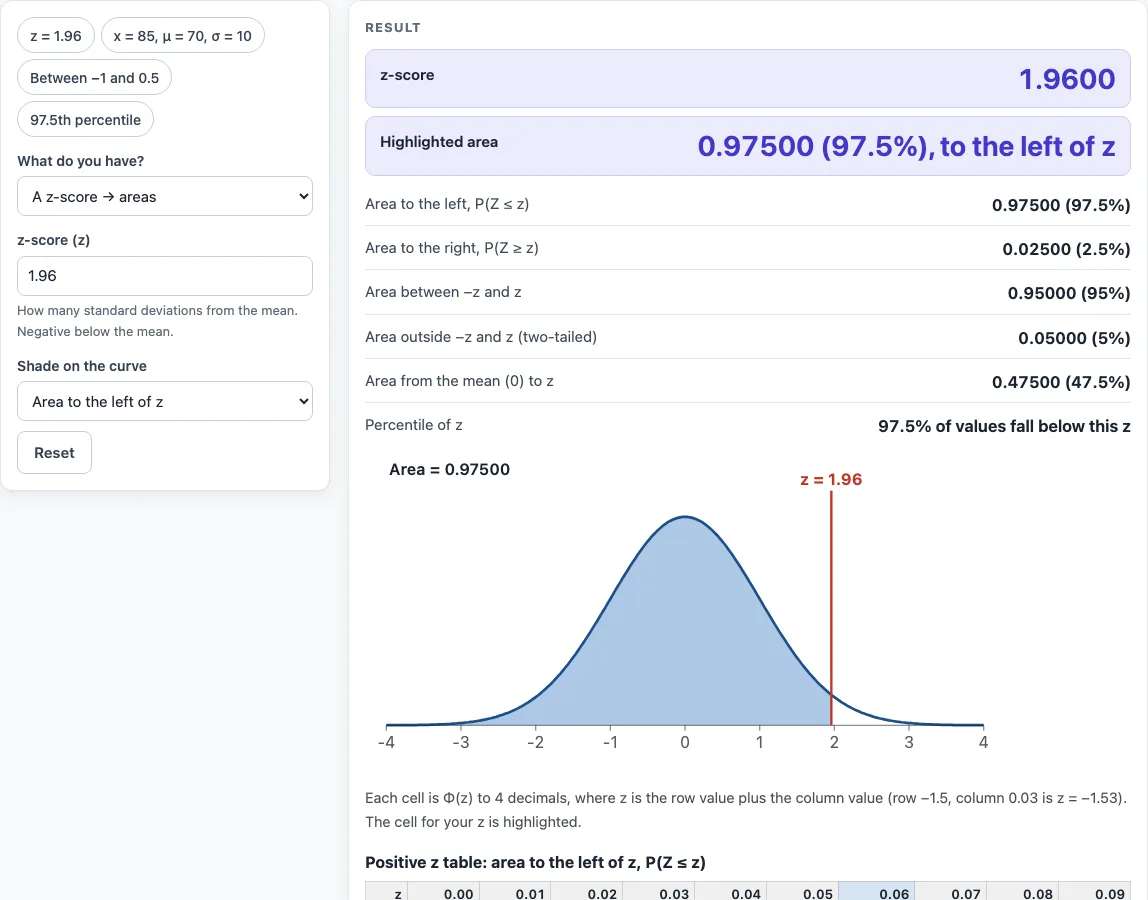
How to use the z score calculator
- Under “What do you have?”, choose one of the four modes: a z-score to areas; a value x with mean and standard deviation; two values; or a probability or percentile to z.
- Type your numbers into the form. For a z-score, enter z directly. For a raw value, enter x, the mean μ, and the standard deviation σ.
- In probability mode, pick whether your probability is the left, right, between, or outside area.
- Read the result. It updates as you type, and the shaded normal curve marks z on the axis.
- Open “How it was calculated” under the result to see the formula, the values substituted, and the answer with units.
- Use the preset buttons above the form to load typical cases, such as z = 1.96 or the 97.5th percentile.
- Click “Reset” to restore the starting example.
- Scroll down to the printed z table. The row and column of your z are highlighted, so you can check the table reading against the calculator.
Once you have a result, you can keep or share it. “Copy result” copies the result lines with a link, “Copy link” copies the page address with all your inputs, and “Print / save as PDF” prints a one-page record. The steps above cover the full workflow.
What is a z score and how is it calculated?
A z score tells you how many standard deviations a value lies above or below the mean. It is calculated as z = (x − μ) ÷ σ, where x is your value, μ is the mean, and σ is the standard deviation. A positive z means the value is above the mean, a negative z means it is below, and z = 0 means it is exactly at the mean.
For example, with x = 85, μ = 70, and σ = 10, z = (85 − 70) ÷ 10 = 1.5000.
What do the left, right and between areas mean?
Φ(z) is the area to the left of z under the standard normal curve. This is the standard normal cumulative distribution function, often called the normal CDF. The right-hand area is 1 − Φ(z), which equals Φ(−z). The area between −z and z is 1 − 2Φ(−|z|), and the area outside them is everything else.
A percentile is the left-hand area multiplied by 100. Since z = 1.96 has a left area of 0.97500, it is the 97.5th percentile.
How do I read a z table?
The printed z table lists Φ(z) to four decimals for z from −3.4 to 3.4 in steps of 0.01. It has a negative table and a positive table, with rows by tenths and columns from 0.00 to 0.09. To find z, add the row and column. Row 1.9 and column 0.06 give z = 1.96, and the cell reads 0.9750.
When you use the calculator, the cell for your z is highlighted. Because the negative table is simply 1 minus the positive table, you can get a right-hand area from a left-hand one. Every value is computed in the browser and matches the NIST handbook table of areas to within its five-decimal rounding. The calculator assumes normally distributed data; for strongly skewed data, the areas are model values only.
Sources
- Standard normal distribution and its table: NIST/SEMATECH e-Handbook, normal distribution and critical values of the normal distribution (all 410 table cells checked in the tests)
- z = (x − μ)/σ and Φ(z) definitions as in the same handbook
Worked examples
| Input | Result |
|---|---|
| z = 1.96 | left 0.97500, right 0.02500 |
| x = 85, μ = 70, σ = 10 | z = 1.5000, left 0.93319 |
| between 85 and 115, μ = 100, σ = 15 | 0.68269 between |
| 0.95 as the area between −z and z | z = ±1.9600 |
| z = -1.53 | left 0.06301, right 0.93699 |
Calculated by the tool above with these values.
Frequently asked questions
Can I use the results in commercial projects or client reports?
Yes. Results may be used in commercial work, including reports, audits, client projects, and training material, without attribution. The page also reminds you to check the results against your own process data before acting on them.
Is the calculator free, and is anything I type uploaded?
Yes, the calculator is free, and no account or sign-up is required. Nothing you type is uploaded, because all calculations run in your browser.
Can I print or share a calculation?
Yes. The print and link options described in the steps above let you keep a record or send the same calculation to someone else.
What z value gives 95% of the area between −z and z?
For 95% between −z and z, z = ±1.9600. This is the 97.5th percentile, which is one of the common critical values. The others are 1.282 (90th percentile), 2.326 (99th), and 2.576 (99.5th).
When should I use the negative z table?
Use it when your z is below the mean. For z = −1.53, the left area is 0.06301 and the right area is 0.93699.
What if my z is larger than 3.49?
The printed table has no cell for |z| above 3.49, but the calculator still gives the area. Very small tails are shown in scientific notation; for z = 6, the area to the right is 9.8659e-10.
How do I find z from a probability?
Use probability mode and select the area type. A left-hand probability of 0.975 gives z = 1.9600.
What is the area between 85 and 115 when the mean is 100 and the standard deviation is 15?
The area between 85 and 115 is 0.68269, which is the area within one standard deviation of the mean.
Related tools
- Control chart generator: Use it to set 3σ control limits on process data and flag out-of-control points.
- Histogram maker: Use it to see whether your data look roughly normal before you use z values.
- Six sigma calculator: Use it to convert defect rates and process performance into sigma levels.
- Cpk calculator: Use it to measure how well a process fits within its specification limits.
- All manufacturing and inventory calculators: Use it to browse the full set of tools on the site.