Pareto Chart Maker
Paste categories with counts or costs to make a Pareto chart with a cumulative percentage line and see the vital few causes.
A pareto chart is a bar chart that sorts categories from largest to smallest and adds a cumulative % line, so you can see which few categories make up most of the total. This pareto chart maker ranks your categories and shows the share and cumulative % for each one. It helps you decide which problems to fix first, such as defect types, complaint reasons or downtime causes.
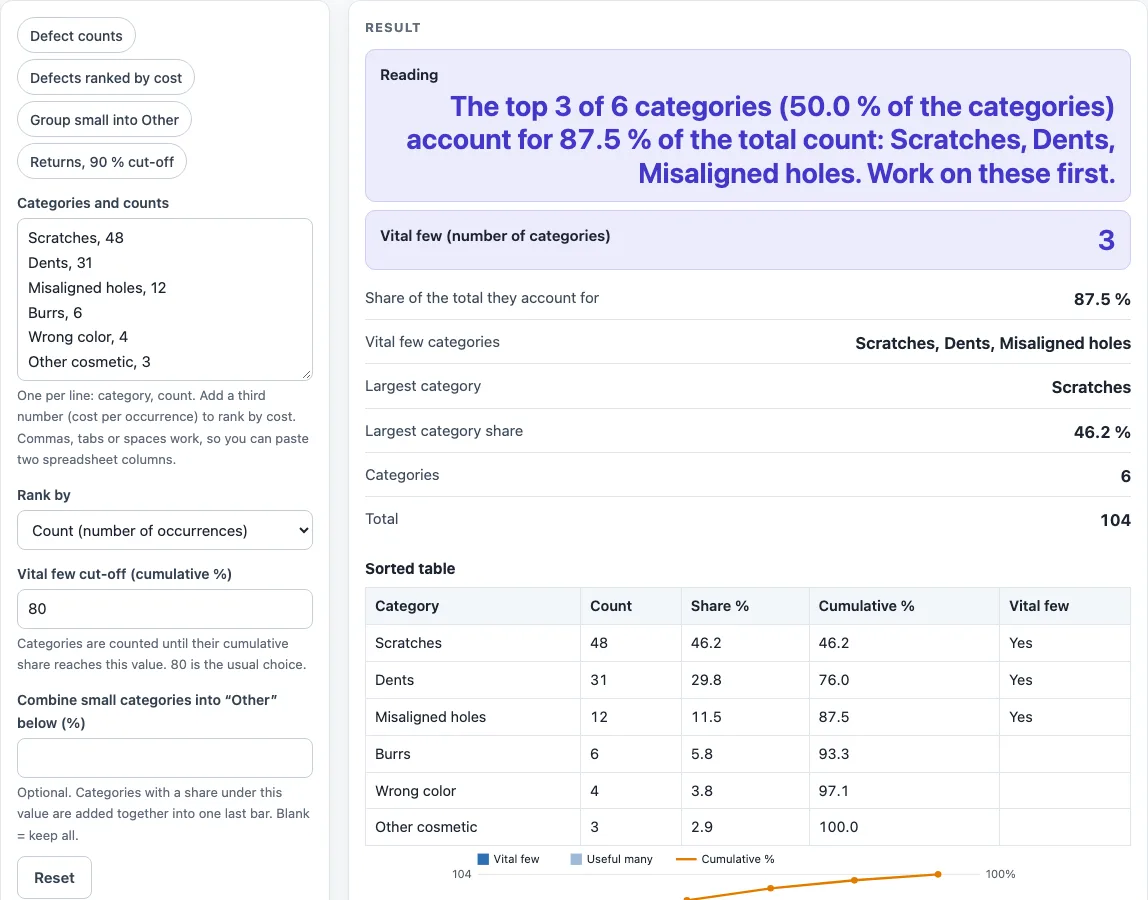
To use it as a pareto graph maker, pareto plot or pareto diagram maker, enter one category and count per line, then read the chart and the reading line. The chart has bars on the left axis, a cumulative % line on the right axis, and a dashed cut-off line that marks where the vital few end.
How to use the Pareto chart maker
- Enter your data in the input box, one category per line, as “category, count”. Tabs copied from spreadsheet columns also work, and so does “category count” with the number last.
- If you know the cost of each occurrence, add it as a third number on the line, for example “Scratches, 48, 2.5”.
- Check the sorted table. The share % and cumulative % for each category update as you type.
- Set the cut-off percentage. It is 80 % by default and you can change it.
- Under “Rank by”, choose Cost if you want the categories ranked by count × cost instead of count alone.
- Read the reading line under the chart. It states how many categories reach the cut-off, the share of the total they account for, and lists them.
- Open “How it was calculated” under the result to see the formula, the values used and the answer with units.
Use the buttons above and below the result to save your work. “Copy link” copies the page address with all your inputs, so the same calculation reopens later or can be sent to a colleague. “Copy result” copies the result lines with a link. “Print / save as PDF” prints a one-page record. “Reset” restores the starting example, and the preset buttons above the form load typical cases.
What is a pareto chart?
A pareto chart is a bar chart with categories sorted from largest to smallest, combined with a line that shows the running total as a percentage. It is based on the idea that a small number of causes usually produce most of the effect, often called the 80/20 rule. The tool draws the bars on the left axis from 0 to the total, and the cumulative % line on the right axis from 0 to 100 %.
How are share and cumulative % calculated?
Share = value ÷ total × 100. Cumulative % = running total ÷ total × 100. Take the example Scratches 48, Dents 31, Misaligned holes 12, Burrs 6, Wrong color 4, Other cosmetic 3. The total is 104, so the cumulative values are 46.2, 76.0, 87.5, 93.3, 97.1 and 100 %. For Dents, the running total is 48 + 31 = 79, and 79 ÷ 104 × 100 = 76.0 %.
What are the vital few and how does the cut-off work?
The vital few are the fewest top categories whose cumulative share reaches the cut-off. A category that lands exactly on the cut-off counts. For example, with shares of 50, 30 and 20 % and an 80 % cut-off, the cumulative values are 50, 80 and 100 %. The first two categories reach 80 %, so the vital few are 2 categories.
How does ranking by cost change the result?
When you rank by cost, each category’s value is count × cost. Take A with 10 items at 5 (50), B with 100 at 0.2 (20) and C with 4 at 10 (40). The total cost is 110. By count, B leads. By cost, A leads with 50 ÷ 110 × 100 = 45.5 %, and C brings the cumulative share to 81.8 %, so A and C are the vital few.
Sources
- Pareto chart construction (sort descending, cumulative percentage line): Y. Reshef, University of Alberta, Pareto analysis; Wikipedia, Pareto chart
- The 80 % cut-off is the usual convention for the 80/20 rule and can be changed
Worked examples
| Input | Result |
|---|---|
| 6 categories ranked by count, 80 % cut-off | Vital few: 3 categories, 87.5 % of the total |
| 6 categories ranked by cost, 80 % cut-off | Vital few: 3 categories, 87.2 % of the total |
| 5 categories ranked by count, 80 % cut-off | Vital few: 3 categories, 87.5 % of the total |
| 5 categories ranked by count, 90 % cut-off | Vital few: 4 categories, 95.0 % of the total |
| 6 categories ranked by count, 80 % cut-off | Vital few: 3 categories, 83.3 % of the total |
Calculated by the tool above with these values.
Frequently asked questions
Can I use the results in commercial projects or client reports?
Yes. The results may be used in commercial work, including reports, audits, client projects and training material, without attribution. The results depend on the values you enter, so check them against your own process data before you act on them.
Is the calculator free, and is anything I type uploaded?
The calculator is free, and there is no account or sign-up. Everything is calculated in your browser, and nothing you type is uploaded.
Can I print or share a calculation?
Yes. “Print / save as PDF” produces a one-page record with the inputs, results, calculation steps and date, along with the chart and table. “Copy link” stores every input in the URL, so the calculation can be reopened or sent to someone else.
Why does a line with a comma in a number give the wrong result?
A comma separates fields on a line, so “1,200” is read as two values. Write the number without the separator, as 1200.
What does the first line do if it has no numbers?
A first line without numbers is treated as a column title and is not counted as a category. This lets you paste a spreadsheet with headers. Repeated category names further down are added together.
What does the warning for an even distribution mean?
It means no small group of categories stands out, so there is no clear vital few. The Pareto principle works best when a few causes dominate, so you may need to look at how the categories were defined.
Can I combine small categories into one bar?
Yes. Use “Combine small categories into Other below x %” to merge categories whose share falls below your chosen percentage. At least two categories must qualify, and the combined “Other” bar is placed last.
Does the chart work with more than 25 categories?
It does, but a warning appears above 25 categories because the chart becomes hard to read. Grouping the smallest categories with the “Other” option can help.
Related tools
- Fishbone diagram maker: use it to list the possible causes behind the biggest bar.
- FMEA template and RPN calculator: use it to rank failure modes by severity, occurrence and detection.
- Control chart generator: use it to track a process over time and see whether it stays within its control limits.
- Histogram maker: use it to show how values are spread across ranges when you need the shape of the distribution.
- Six sigma calculator: use it to work out sigma levels and defect rates for a process.
- First pass yield calculator: use it to find the share of units that pass a process without rework.
- OEE calculator: use it to measure overall equipment effectiveness from availability, performance and quality.
- All manufacturing and inventory calculators: use it to browse the full set of tools on this site.